Friday, 19 February 2016

USEFUL TECHNOLOGIES Soundcloud Divshare + embedding podcasts/MP3s

This should be familiar by now, but just in case... Take note of the instructions on how to change gadget sizes (works with all sorts of gadgets).

Since originally posting, I've largely switched to SoundCloud, which is widely used by musicians in particular, but so long as you can upload and generate an embed code to post within your blog you could use any site from dozens that offer this facility.

SoundCloud

Don't use YouTube for podcasts.
A GCSE student making use of SoundCloud

RESIZING THE SOUNDLOUD EMBEDDED PLAYER
The default player is rather large!
Below I'll show you how to alter the size, so you can (if you wish) get something like this:


Thats a bit extreme: WIDTH 20% HEIGHT 100

USEFUL TECHNOLOGIES: Prezi + other PowerPoint alternatives

When evaluating your work, you need to comment and reflect on your own use of technology, including in the Evaluation itself; you are marked on your use of technology - and on how creatively you have used a variety of technologies.

So, whilst you may wish to upload a PowerPoint to slideshare (or equivalent), you would be advised to think of alternatives too.

Prezi is probably the best known interactive multimedia alternative; you build your Prezi through its website and get an embed code. It provides options for a pre-programmed route through your content and/or manual control and selection by the user, and can feature embedded videos etc.

There is a Prezi YouTube channel - their playlist is embedded below - if you prefer, they also provide web pages to guide you.


USEFUL TECHNOLOGIES: Google calendar

Great way to show your use of technology as well as to help evidence time management (and organisation of cast to boot if you share this with cast!!!), so just the three assessment criteria this can help with then!

Conal (A2 2014-15) produced his own guide, which you can read here. This group embedded their calendar at the bottom of the blog, a smart idea - I clicked back to December 2014 to get the screenshot below:


USEFUL TECHNOLOGIES: Infographics tools

See links below
An infographic is a great way to combine image and text (especially numbers) - and you needn't spend hours in Photoshop to do so...

Below you can find links to some reviews and sites which offer free infographic-building tools.

USES FOR INFOGRAPHICS
Useful at any stage, but especially for the Evaluation.

You could create an infographic to...

  • present a summary/snapshot of audience feedback,
  • explain the concentration of ownership in the film, press or music industries,
  • illustrate your influences and intertextualities,
  • illustrate a convention,
  • highlight the range of technologies used 
  • etc!!!
Here's an example of an infographic you could adapt to evidence and showcase your research into + knowledge of the music industry - you could take a similar approach for film ...


FINDING FREE INFOGRAPHIC TOOLS

Wednesday, 17 February 2016

WIX creating a splash or landing page

Many of the online instructions for this refer to the Wix editor which is now termed the old editor as it has fundamentally changed ...

I haven't tested the following out, so if any of these works for you let me know via a comment.

In this 2015 link, the Wix support team reference a specific landing page menu option:
There are also shorter guides here, here (using a splash video), here (using a button workaround) and here.

Bear in mind that you can request technical help from Wix directly!


USEFUL TECHNOLOGIES: Cloud storage and sharing documents

An aspect of working in groups (or with an existing act, as with the 2015-16 Sly Antics production at IGS) to consider is the ability to share and collaborate on documents.

You already have that capacity with GoogleDocs (part of your Google package with Photos, Gmail, YouTube, Blogger, Calendars...), and could consider the likes of DropBox or Microsoft's interesting offer (especially cheap for students) of 1TB cloud storage with an annual Office365 subscription [Luxembourg link, in French; UK student link; choose country] (which I'll be taking up myself with a variety of PCs and Macs that I work across).

Here's a couple of round-up reviews to help you:

CNET look at the main players.
Obviously these figures are subject to change


PCAdvisor's round-up.
The magazine site provides a summary of a wide range of options, including several you probably won't have heard of!

USEFUL TECHNOLOGIES: YouTube resize, playlists, privacy, annotation, editing tools

YouTube has a variety of functions which you can make use of.

I've highlighted two examples below; use YouTube's own help channel or the Google help page to learn more - for example on editing a video you've uploaded to YouTube, annotating it ... there's a lot you can do!

Make sure you always consider carefully the title and description of your uploads - don't just leave it with the Final Cut auto-text. Adding tags will help create an audience for your work too, and shows an understanding of media conventions too.

CUSTOMISE THE SIZE OF VIDEO EMBEDS ON YOUR BLOG
You get this option with most sites that allow you to embed uploaded content (video, audio, documents...).
If you're embedding the smallest (default) YouTube player, you're not doing it right.

This means the user can't access most of the tools YouTube makes available through its player, as there is no space to display these.

So ... you simply click on 'show more' when in the Share dialogue and select a different size.
Test it out to ensure it has made a difference.

You can also choose to include a playlist if it is part of one.
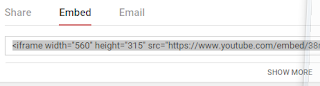
The standard SHARE>EMBED view. You need to click SHOW MORE...

If the video is part of a playlist you can choose whether or not to select this